

Blog

Lights, Camera, Action

stop-motion-studio1-150x150

I’m currently using Stop Motion Studio on the iPad with a year 2 class in Bolton. The children have been able to use the app right from the start. They have found it very easy to use and have been creating some lovely work.


As an introduction, the children were asked to build a tower of ten bricks, brick by brick; then dismantle it brick by brick, filming every step. They soon got the hang of it and before long had taken it upon themselves to create even more complex activities.  See how the challenge went………


Speaking to their teacher about the activity, she is now confident to use the app across several areas of the curriculum:
– maths to demonstrate how to solve problems
– art to show how to draw simple pictures step by step
– topic by taking a walk down Pudding Lane before the fire (The class has a huge street scene depicting houses of the time)
– literacy for story telling



It’s Never Too Late For E-Safety

It seems a long time since Safer Internet Day / e-Safety Week, but schools are still asking for support with all aspects of e-safety.  I’ve been asked to deliver classroom lessons with follow-on worksheets, whole school assemblies, Key Stage assemblies, staff CPD and parental workshops. Sadly, it’s the parental workshops that have the loceopwest attendance; parents just don’t seem to want to give up an hour of their time to learn more about how they can be good role models, keep their children safer on-line and report abuse if necessary.
I’m finding that children even in year 1 can talk about their experiences on Skype, XBox Live, Instagram, Minecraft, Face Time. I met a child in Year 3 the other day who had his own YouTube channel. The web is a wonderful place; but it’s also dangerous if children aren’t equipped with the correct skills.

Most of my presentations include resources from the Think u Know website, but I also use other materials and get my inspiration from numerous sites. Just a few of the additional websites I would recommenced are:

If you are thinking of renewing your E-Safety curriculum and/or policies please get in touch. I’m happy to tailor my resources to your specific needs and address any concerns you have.  Do you need help developing age appropriate schemes of work to deliver e-safety and digital citizenship?  Or maybe your safe-guarding staff need some refresher training in dealing with cyber-bullying or online grooming? As a CEOP Ambassador I can cover all the aspects; just contact me for support
.


Scratch Jnr

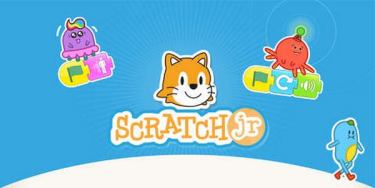
This has got to be one of my favourite apps for pupils. I tend to use it with Years 2 and 3, and I’ve found that it gives pupils a great grounding for the “full-fat” version.scratchjr-app-for-kids

For the first lesson we usually just tinker with app, getting used to the icons and discovering what it offers without being too prescriptive about outcomes and learning objectives.
The graphics are child-friendly and most pupils are quick to pick up  an understanding of what the different blocks can do.

Here are some ideas of how to get the best out Scratch Jnr:

  1. Link it to maths for young learners. If you switch on the grid, pupils can use this to calculate the number of moves the sprite does.
  2. Use the grow and shrink blocks to get your sprites the right size for the background scene.
  3. Use the wait block to create well-timed conversations between two sprites.
  4. Encourage and explore story-telling and change backgrounds as the story progresses.
  5. Create some cause and effect scenes by using the start on bump block.

Scratch Jnr has it’s own website with lots of ideas to get you started and the app is free to download. And if you feel you need any help or training to get using Scratch Jnr in the classroom then please get in touch with me.

Starting to use iPads in the Primary Classroom

It’s still a fact, that many schools are just starting their journey along the road to using iPads. What a lot of schools take for granted and view as the norm is often quite a difficult transition for others. So, where is the best place to start? Here are my top 5 thoughts on beginning to use iPads in the Primary classroom:

  1. Nominate someone to be the sole keeper of the iTunes account details. That way you can monitor spend and know exactly what has been downloaded. I’ve worked with many schools where the iPads are a mess of dozens of apps, no organisation, no thought put into it. Iimg_6826t makes me wonder if they are getting the best out of the devices. Set a regular review schedule too so that once a term you can review what apps are on the devices, which are being used and which need to go.
  2. Devise a process for updating the iPads. Apps change and newer versions come out all the time. If you’re not up to date then the pupils are missing out. Some schools choose to update each iPad individually, others do bulk updates via a Mac. How you set this up is down to your school set up and staff availability. Read these articles from Apple: http://www.apple.com/uk/education/it/ and https://volume.itunes.apple.com/gb/store
  3. Some apps offer a “lite” version that is free to try before you buy the full version. Sometimes this is a good idea as you avoid paying out for something that isn’t quite right. It’s also a good idea to allocate a budget to your colleagues so that you can keep track and curb shopaholics.
  4. Have clear ideas about what you plan to do. Using iPads still requires planning and objective setting. It may be that iPads are used for only part of a learning session, or only certain ability groups will use iPads.  Prepare for printing or sharing of work, if you haven’t planned in advance it may not work as expected and then you’ve lost a lesson’s worth of work.
  5. Allow time for handing out and collecting iPads in your lesson. The devices should be closed down correctly, all apps closed and correctly stored away at the end of the lesson ready for next time.  Get into good habits at the outset and train your pupils to treat these devices respectfully.